Use Nexus data replay feature to run DPAT with SmarTest 8#
About this tutorial#
Nexus Data Replay is a special working mode in Nexus. By this mode, you can run the DPAT App by using the “data_replay” command line, which is independent of SmarTest. Data replay is enabled by changing the Nexus working mode configuration from “production” to “replay”. You must specify a STDF file as the data source in the command.
In this tutorial you will learn how to:
Run DPAT application with Nexus in data replay mode.
Compatibility#
SmarTest 8 / Nexus 3.1.0 / Edge 3.4.0-prod
Before you begin#
You need to request access to the ACS Container Hub, and create your own user account and project.
Ensure one of the following is completed:
Procedure#
Note: The ‘adv-dpat’ project we are using below is for demonstration purposes. You will need to replace it with your own project accordingly.
Generate the STDF file(~/stdf/smt8_dpat-xxxxxxxxxxxxxx) by running DPAT, you can use one of the following methods
Note that:
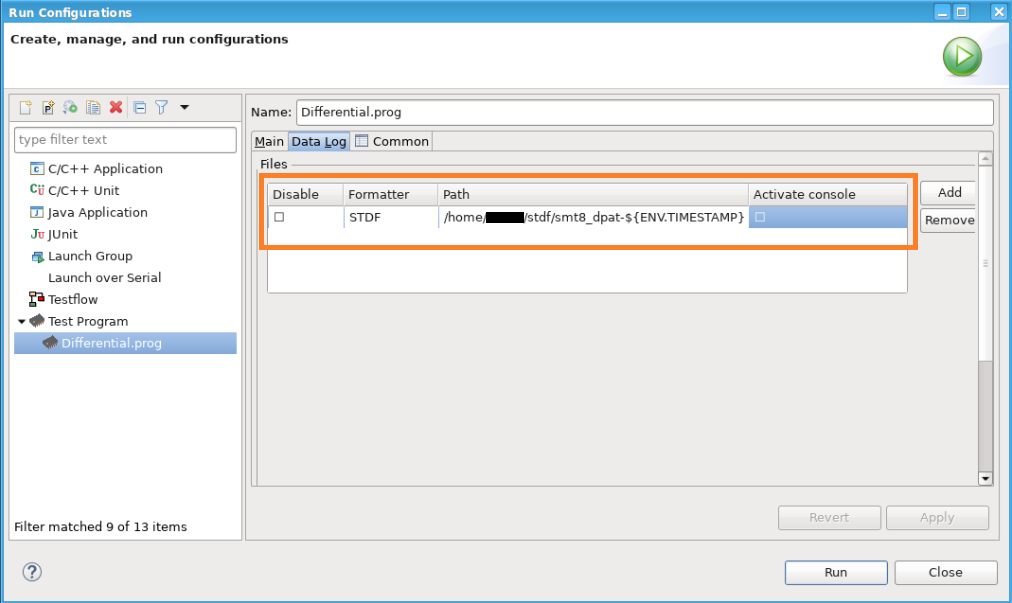
Before running test program, you should enable stdf file output in SMT8:
Create directory for stdf files
mkdir ~/stdfConfig STDF datalog output file /home/ChangeToVmUsername/stdf/smt8_dpat-${ENV.TIMESTAMP} in [Run] -> [Run Configurations…] of EWC menu
Run DPAT application with Nexus in replay mode#
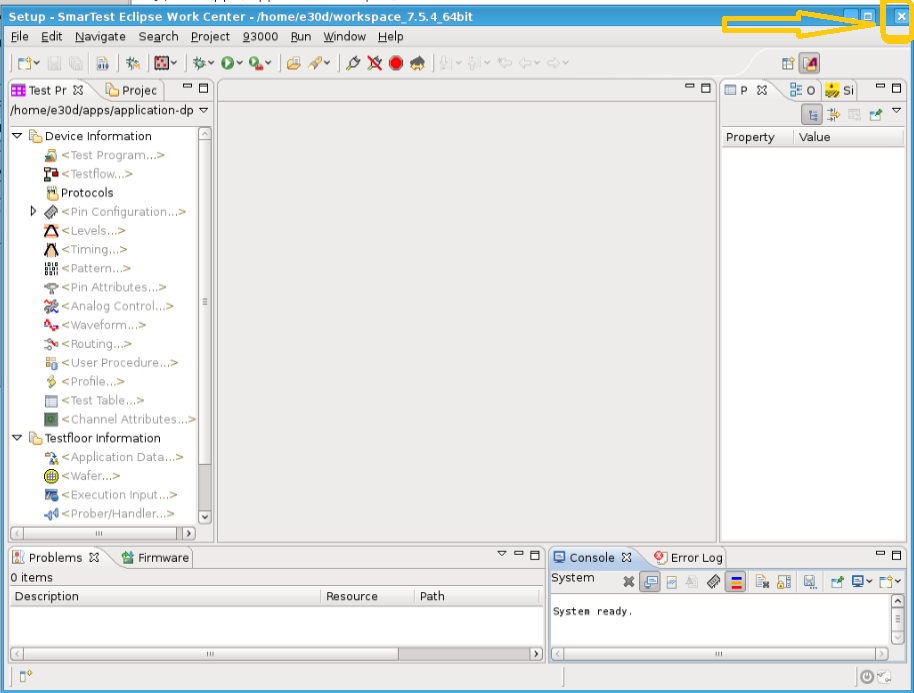
Click the “x” in the top right corner to close SmarTest.
Change asc_nexus service to data replay mode
sudo sed -i 's/production/replay/g' /opt/acs/nexus/conf/acs_nexus.ini
sudo systemctl restart acs_nexus
Start DPAT docker image manually.(Replace edge_ip, tag, user and password in the command line with your own values)
Pull image:
sudo /opt/acs/nexus/bin/EdgeControlTool pull -edge_ip ChangeToYourEdgeIp -registry registry.advantest.com -name adv-dpat/adv-dpat-v1 -tag ChangeToYourDockerTag -user 'xxxxx.xx@xxxxxxxxx.com' -passwd ChangeToYourContainerHubPassword -operate_time 300 -host_ip ChangeToHostControllerIp -container_name dpat-app
Start container:
sudo /opt/acs/nexus/bin/EdgeControlTool start -edge_ip ChangeToYourEdgeIp -registry registry.advantest.com -name adv-dpat/adv-dpat-v1 -tag ChangeToYourDockerTag -user 'xxxxx.xx@xxxxxxxxx.com' -passwd ChangeToYourContainerHubPassword -operate_time 300 -host_ip ChangeToHostControllerIp -container_name dpat-app
Execute the Nexus data replay command.
Note: Typically, Nexus automatically adds the line “EdgeServerIp advantestcell.local” to the “/etc/hosts” file. If you haven’t launched Nexus yet, please make sure to manually add this entry before executing the data_replay command.
sudo /opt/acs/nexus/bin/data_replay -i ~/stdf/smt8_dpat-xxxxxxxxxxxxxx
Output:
Starting to parse stdf and send data......
End to send data, wait for process quit.
Process has Done, quit.
The STDF file “smt8_dpat-xxxxxxxxxxxxxx” is the result from the first run of DPAT in Nexus production mode.
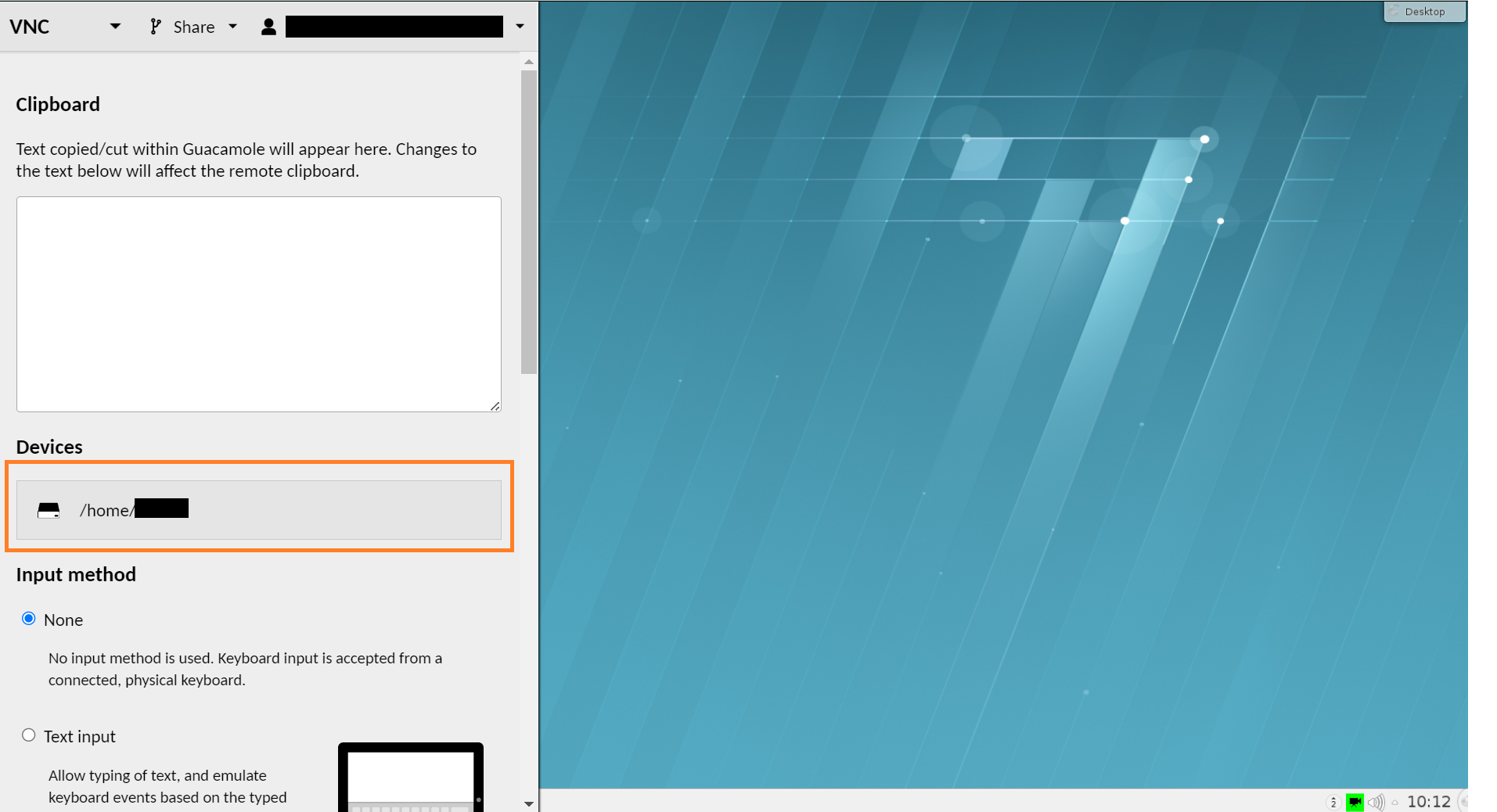
You can upload other STDF file from your computer and execute data_replay for it.
By pressing the “Ctrl+Alt+Shift” keys on the VNC/SSH webpage, you can open the file upload dialog then upload the STDF file.
Verify the result by docker log on Edge Server
You can view the log output by executing the following commands:
cd ~/apps/application-dpat-v3.1.0/docker_logs/
make clean
make
cd ~/apps/application-dpat-v3.1.0/
sh get_edge_logs.sh ChangeToEdgeIp ChangeToContainerName
When you have completed the data replay, stop the container and delete the ACS Edge image by executing the commands below.
sudo /opt/acs/nexus/bin/EdgeControlTool stop -edge_ip ChangeToYourEdgeIp -registry registry.advantest.com -name adv-dpat/adv-dpat-v1 -tag ChangeToYourDockerTag -user 'xxxxx.xx@xxxxxxxxx.com' -passwd ChangeToYourContainerHubPassword -operate_time 300 -host_ip ChangeToHostControllerIp -container_name dpat-app
sudo /opt/acs/nexus/bin/EdgeControlTool delete -edge_ip ChangeToYourEdgeIp -registry registry.advantest.com -name adv-dpat/adv-dpat-v1 -tag ChangeToYourDockerTag -user 'xxxxx.xx@xxxxxxxxx.com' -passwd ChangeToYourContainerHubPassword -operate_time 300 -host_ip ChangeToHostControllerIp -container_name dpat-app
Run DPAT application in replay mode with JupyterLab#
Compatibility#
SmarTest 8 / Nexus 3.1.0 / Edge 3.4.0-prod
Procedure#
Note: The ‘adv-dpat’ project we are using below is for demonstration purposes. You will need to replace it with your own project accordingly.
Click the “x” in the top right corner to close SmarTest.
Change the asc_nexus service to data replay mode
sudo sed -i 's/production/replay/g' /opt/acs/nexus/conf/acs_nexus.ini
sudo systemctl restart acs_nexus
Run the DPAT app
Download artifacts
Please execute the following commands on the Ubuntu Server
cd ~
rm -rf jupyter_lab_environment
curl http://10.44.5.139/jupyter-dpat/jupyter_lab_environment_3.1.0.tar.gz -O
tar -zxf ./jupyter_lab_environment_3.1.0.tar.gz
mv -f jupyter_lab_environment_3.1.0 jupyter_lab_environment
Build image
Please execute the following commands on the Ubuntu Server
docker login registry.advantest.com --username Your_Email --password Your_Password
docker build ~/jupyter_lab_environment/rd-app_dpat_py/ --tag=registry.advantest.com/adv-dpat/adv-dpat-v1:Your_Image_Tag
Push image
Please execute the following commands on the Ubuntu Server
docker push registry.advantest.com/adv-dpat/adv-dpat-v1:Your_Image_Tag
Start the container running the DPAT app
Please execute the following commands on the Host Controller
curl http://10.44.5.139/edgesdk/edge3.0-prod.tar.gz -O
tar -zxf edge3.0-prod.tar.gz
cd edge3.0-prod
export LD_LIBRARY_PATH=$LD_LIBRARY_PATH:./lib
./start_container "registry.advantest.com" "ChangeToYourEmail" "ChangeToYourSecret" "adv-dpat/adv-dpat-v1" "ChangeToYourImageTag" "dpat-app" "9990:8888/tcp" "ChangeToYourEdgeServerIp" "ChangeToYourHostControllerIp"
Start JupyterLab
Please execute the following commands on the Ubuntu Server
echo >~/jupyter_remote_kernel.py
echo c.ContentsManager.allow_hidden = True >>~/jupyter_remote_kernel.py
echo c.FileContentsManager.allow_hidden = True >>~/jupyter_remote_kernel.py
echo c.GatewayClient.url = "'http://Edge_Server_Ip:9990'" >>~/jupyter_remote_kernel.py
echo c.GatewayClient.validate_cert = False >>~/jupyter_remote_kernel.py
jupyter lab stop 8888
jupyter lab --config=~/jupyter_remote_kernel.py --port=8888 ~/jupyter_lab_environment/notebook/dpat-example.ipynb
Wait for a while, and the browser will start automatically;
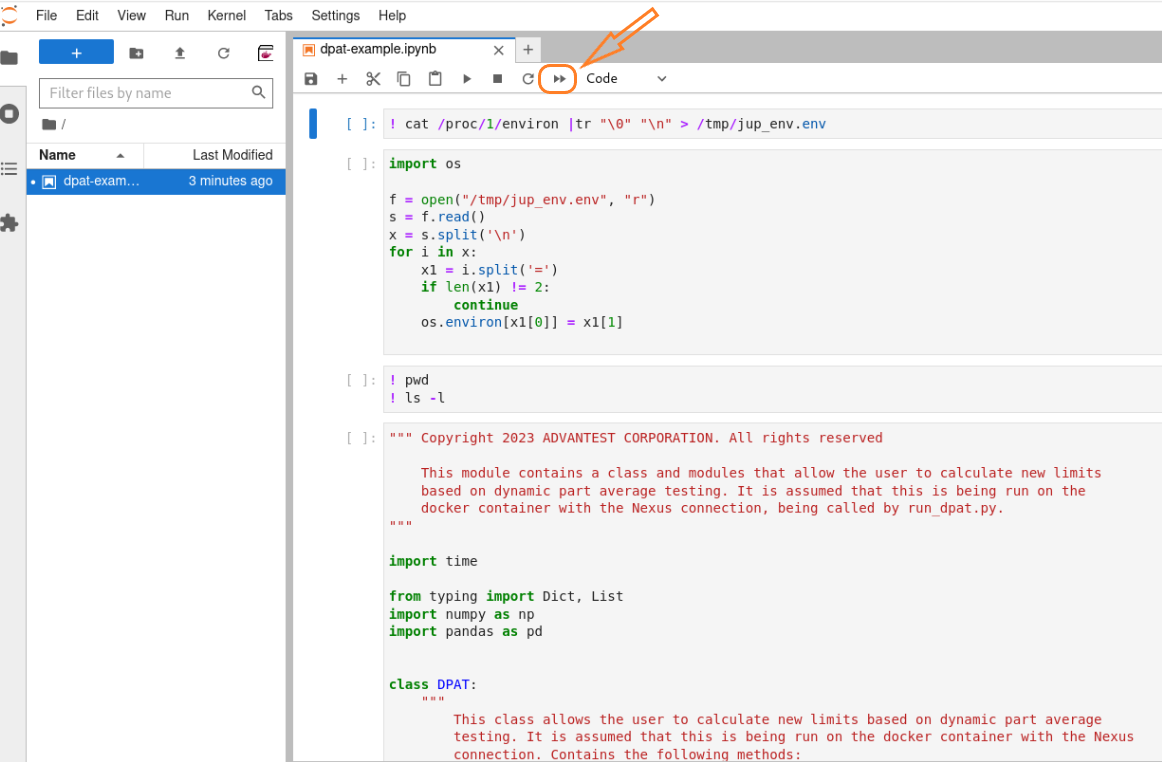
Run all cells
Open dpat-example.ipynb and run all cells
Execute Nexus data replay command
Note: Typically, Nexus automatically adds the line “EdgeServerIp advantestcell.local” to the “/etc/hosts” file. If you haven’t launched Nexus yet, please make sure to manually add this entry before executing the data_replay command.
sudo /opt/acs/nexus/bin/data_replay -i ~/stdf/smt8_dpat-xxxxxxxxxxxxxx
Output:
Starting to parse stdf and send data......
End to send data, wait for process quit.
Process has Done, quit.
Stop the container
On the Host Controller, run the following commands to delete the container:
sudo /opt/acs/nexus/bin/EdgeControlTool stop -edge_ip ChangeToYourEdgeIp -registry registry.advantest.com -name adv-dpat/adv-dpat-v1 -tag ChangeToYourDockerTag -user 'xxxxx.xx@xxxxxxxxx.com' -passwd ChangeToYourContainerHubPassword -operate_time 300 -host_ip ChangeToHostControllerIp -container_name dpat-app
sudo /opt/acs/nexus/bin/EdgeControlTool delete -edge_ip ChangeToYourEdgeIp -registry registry.advantest.com -name adv-dpat/adv-dpat-v1 -tag ChangeToYourDockerTag -user 'xxxxx.xx@xxxxxxxxx.com' -passwd ChangeToYourContainerHubPassword -operate_time 300 -host_ip ChangeToHostControllerIp -container_name dpat-app