VM Management#
Purpose#
Establish your virtual RTDI development environment by creating and managing multiple virtual machines (VMs), including Host Controller, Edge Server, and Unified Server.
Creating and managing VM#
Creating VM#
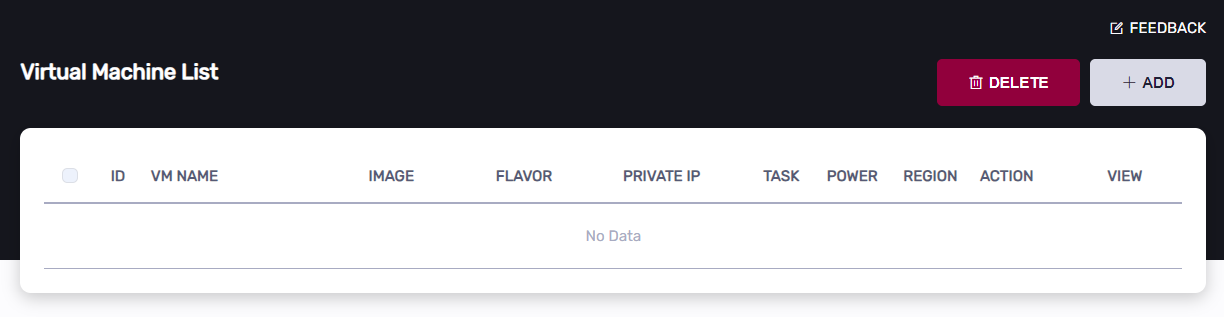
Click the “ADD” button at the top right of the “Virtual Machine” dashboard page
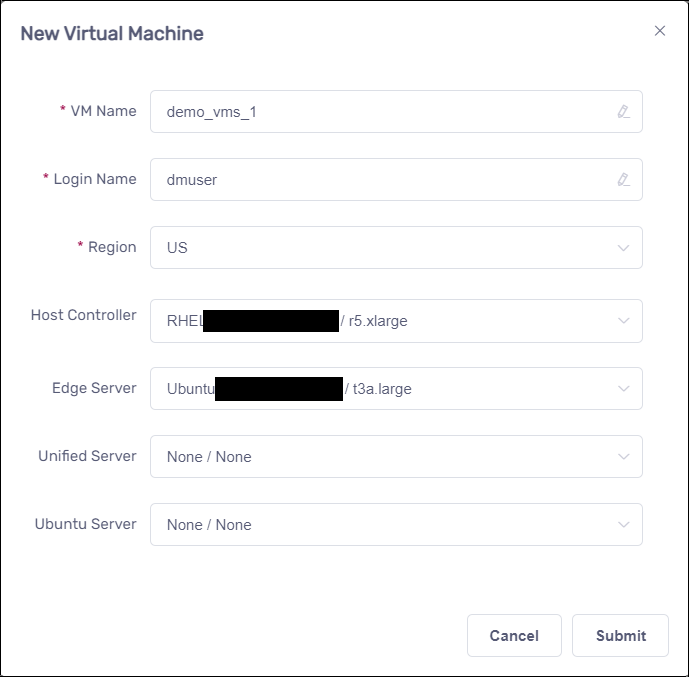
In the “New Virtual Machine” dialog, enter name values in “VM Name”, “Login Name”, select “Region”, “Host Controller” and “Edge Server” image, then click the “Submit” button.
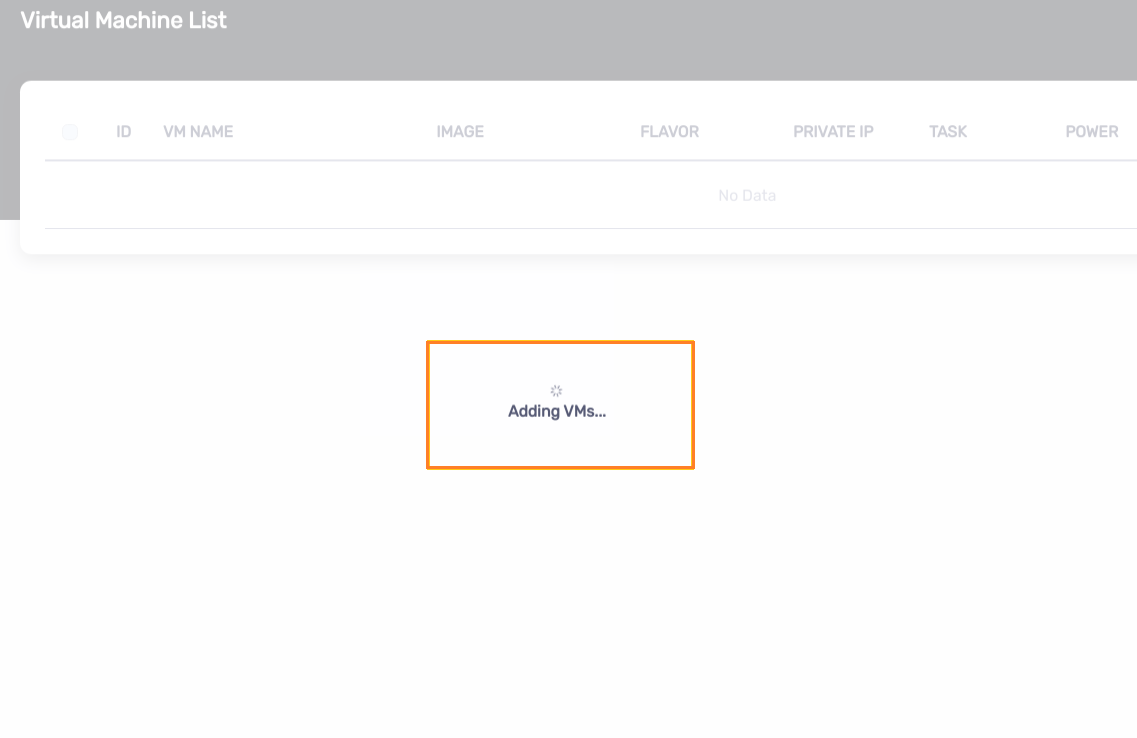
Waiting for VM creation
Once the creation is completed, the “Creation succeeded” prompt will appear
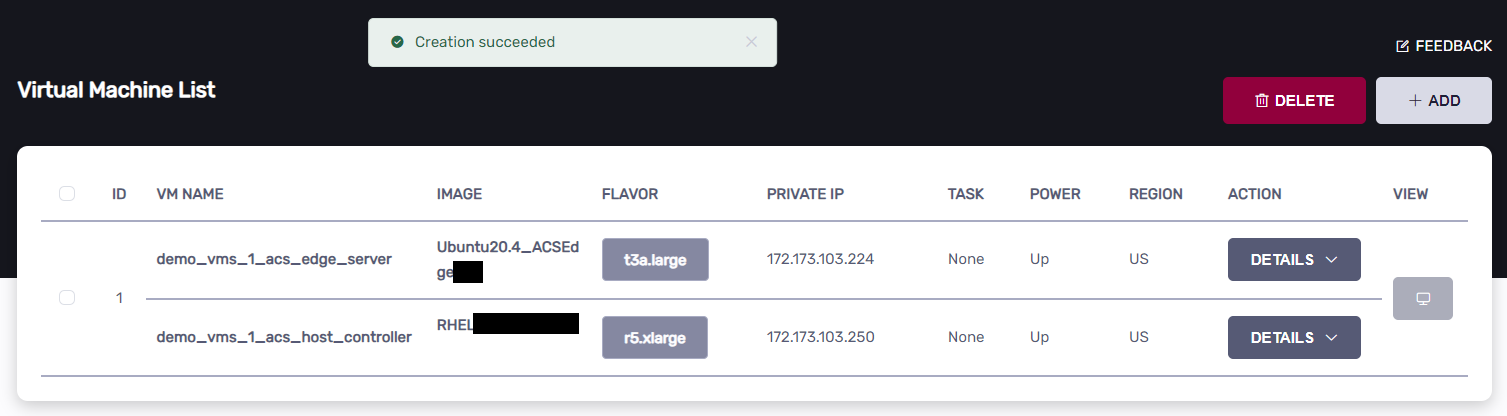
After creating the VM, wait for it to be ready to connect
“POWER” status is Up
“VIEW” button is enabled
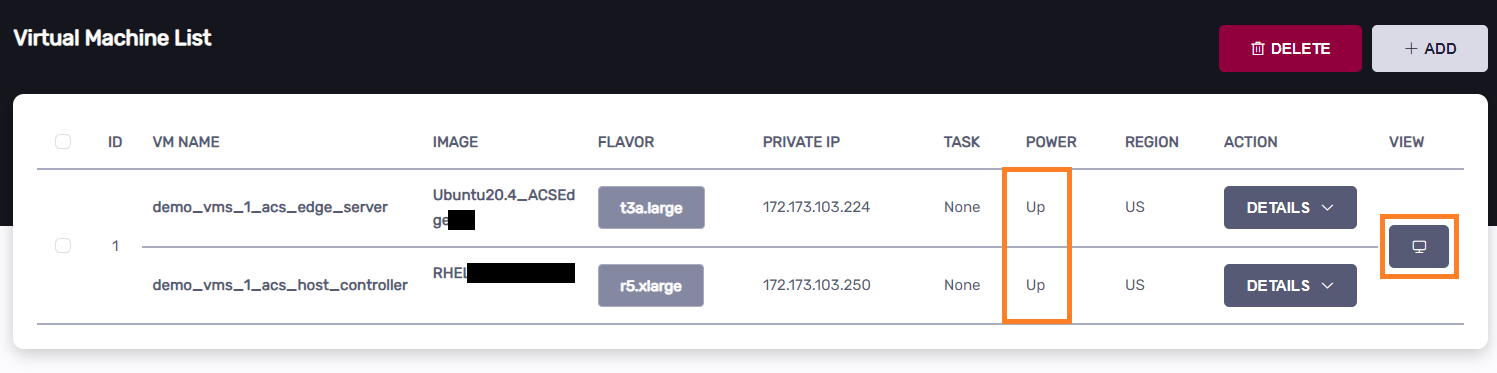
Accessing VM#
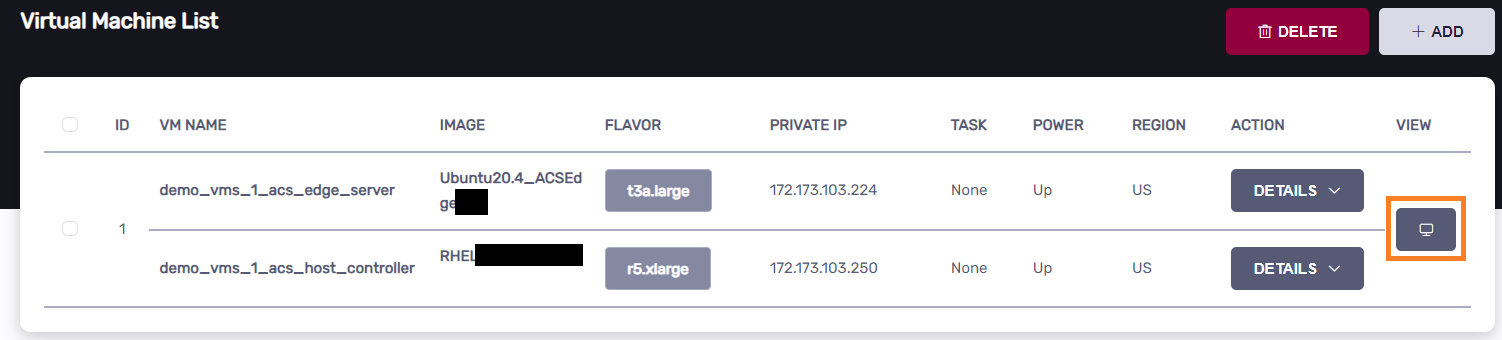
If the VM is ready, click the “VIEW” button to connect to the VM
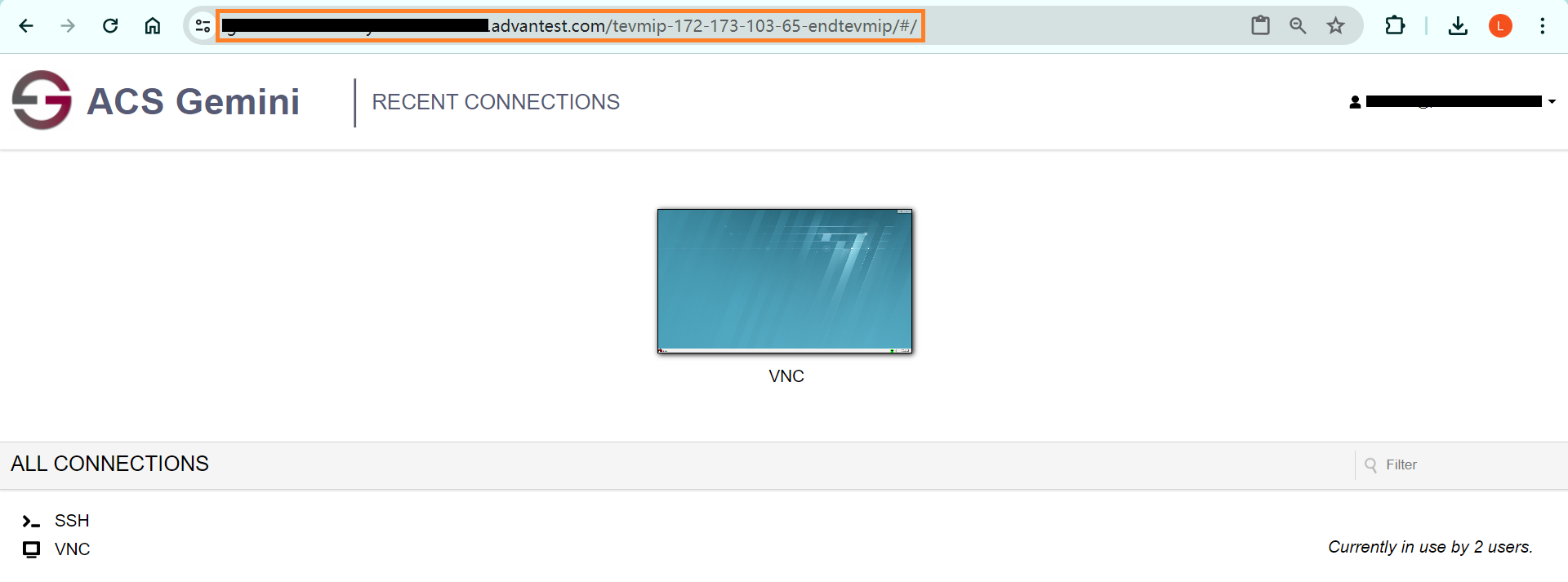
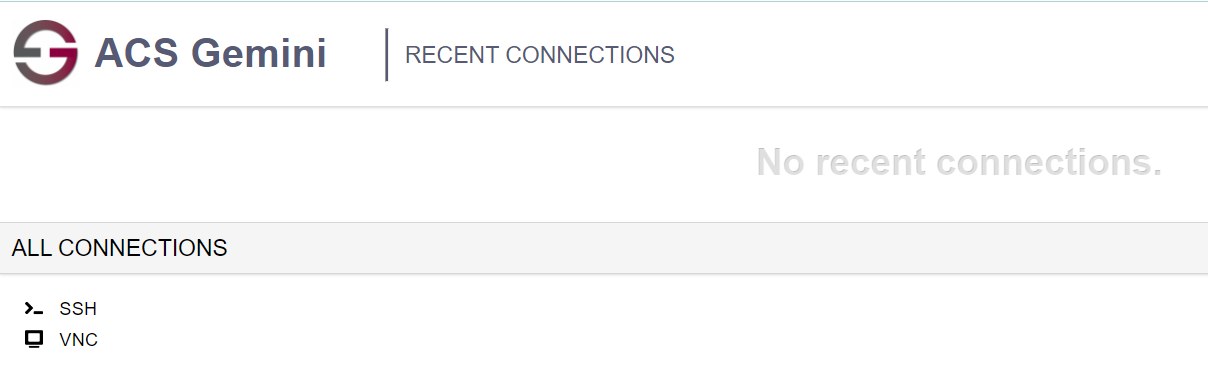
Connect to the Host Controller VM by clicking the “VNC” or “SSH” under “ALL CONNECTIONS”
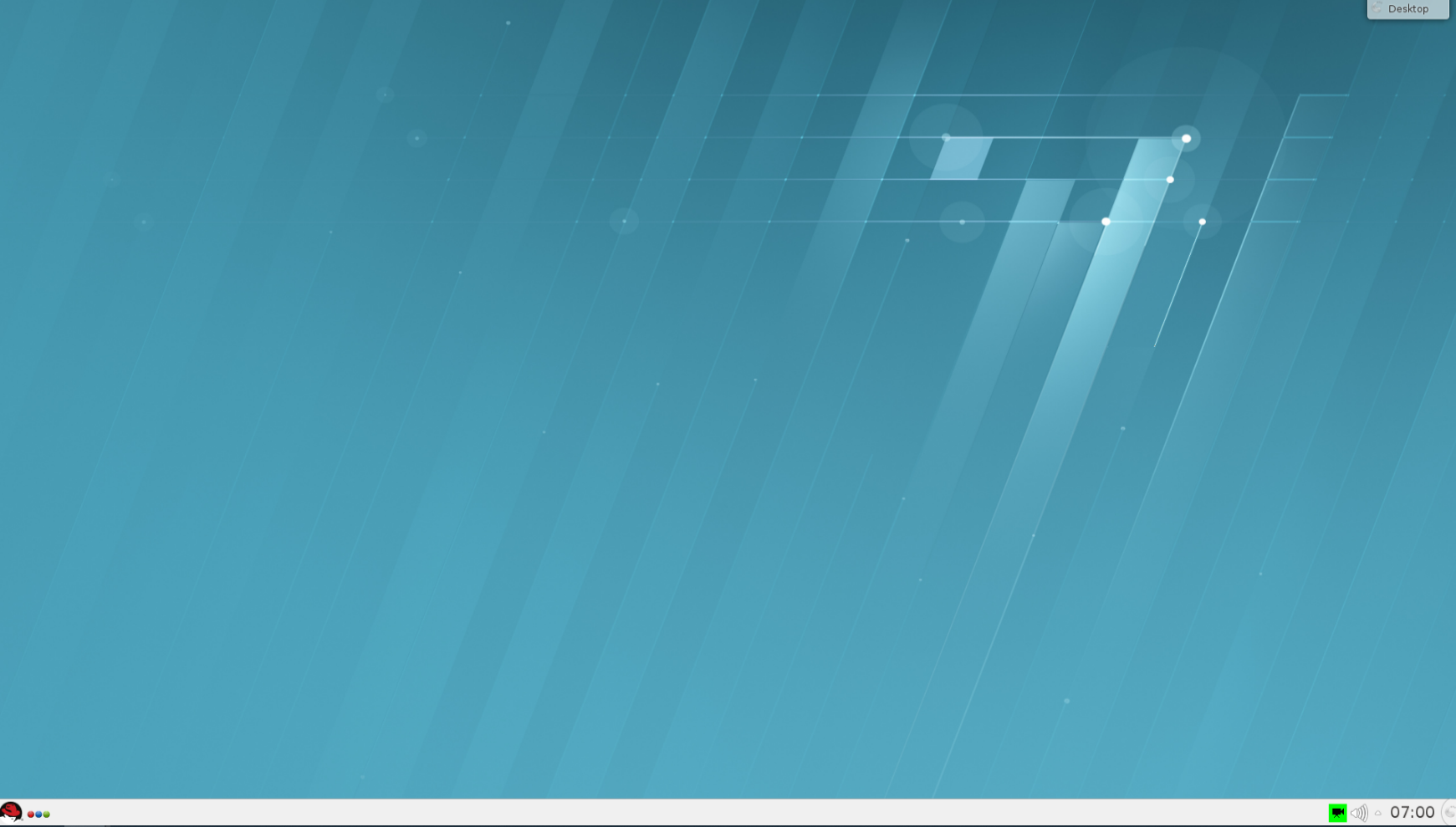
For example, below is the VNC desktop
Transferring files#
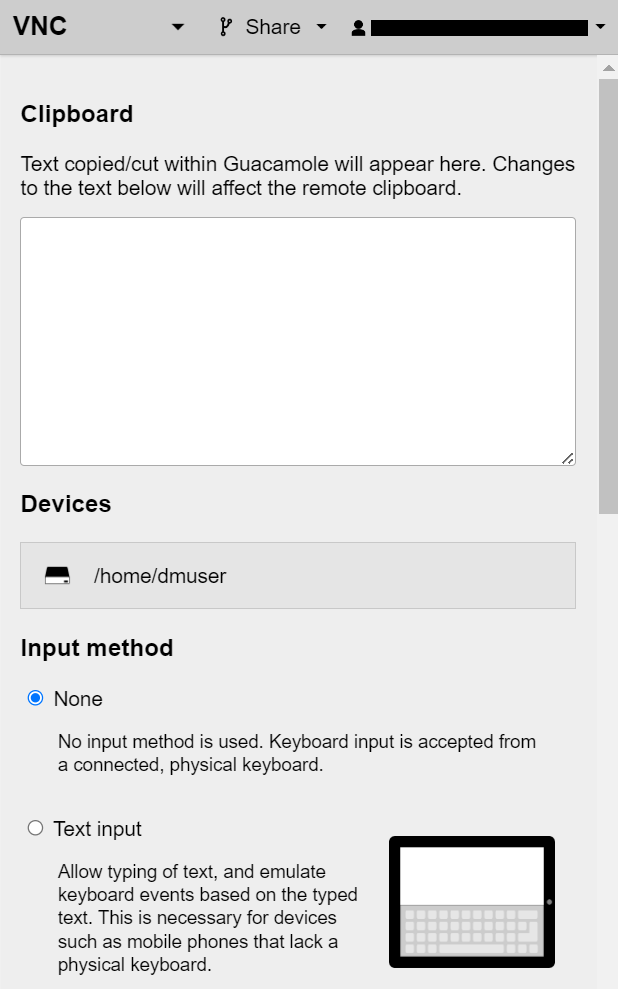
In VNC or SSH session, press Ctrl+Alt+Shift to open the management sidebar
Downloading file#
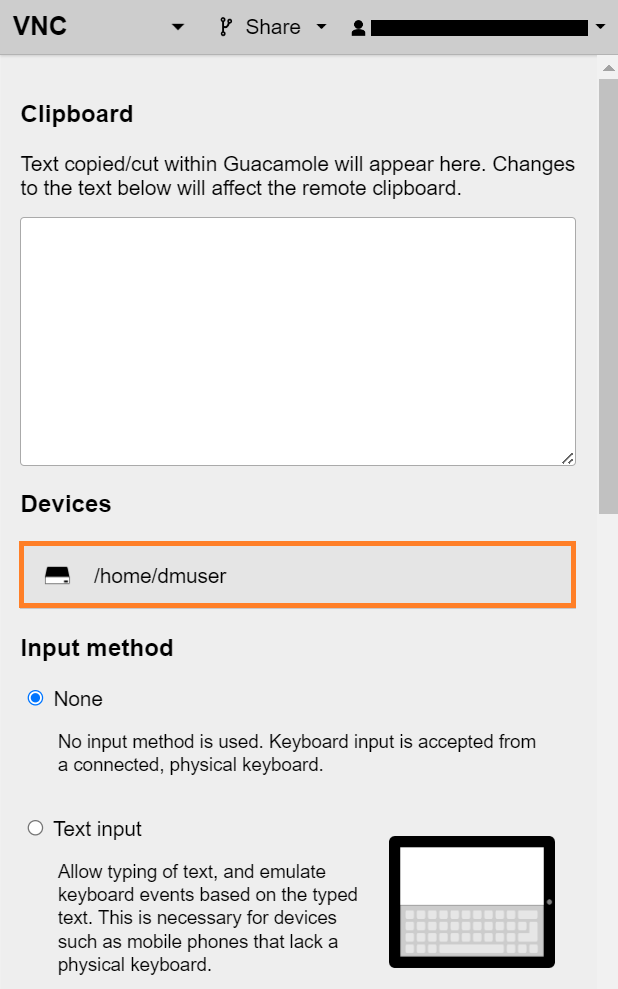
Click “Devices” to enter into your home directory
Double-click the file you want to download
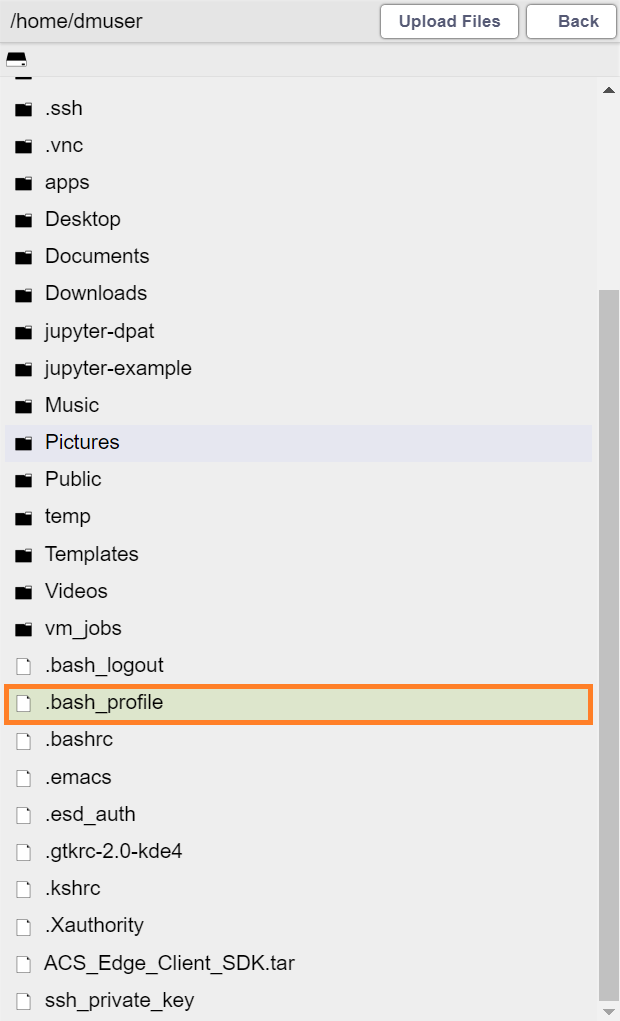
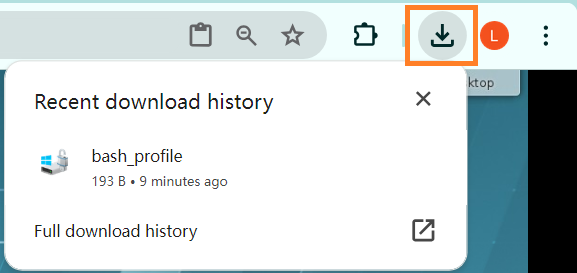
File will be downloaded, you can confirm in “Recent download history” by clicking the browser’s download button
Uploading file#
Click “Devices” to enter into your home directory
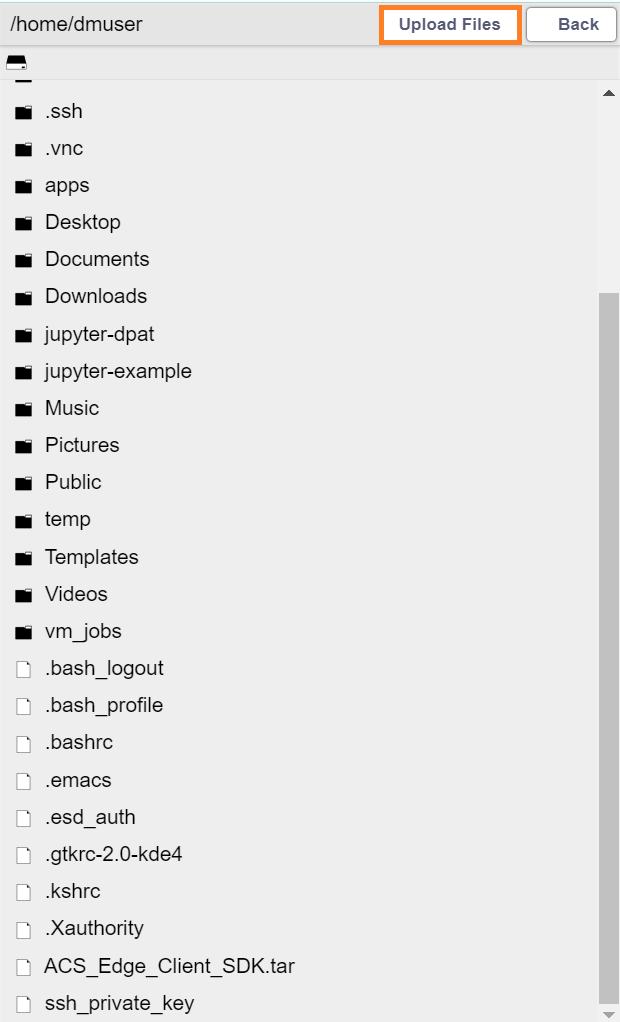
Click “Upload Files” at the top right of the management sidebar
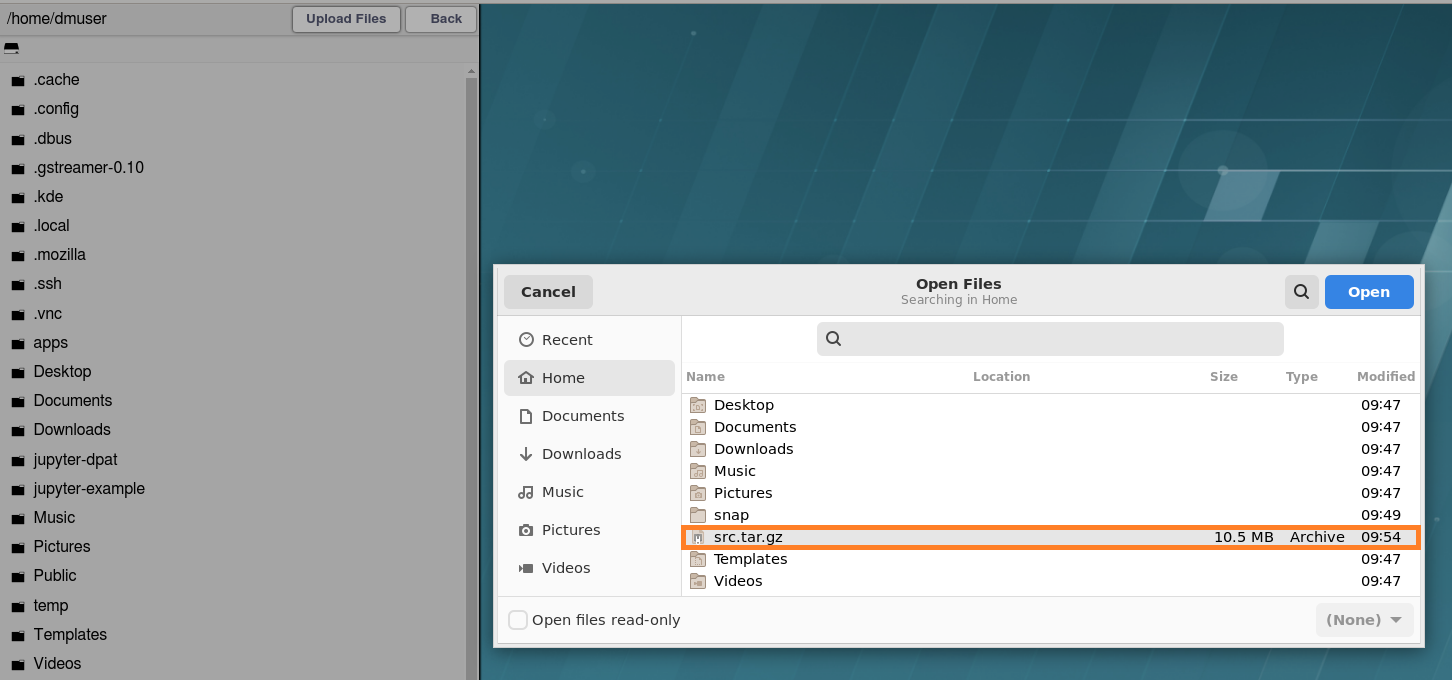
Select the file “src.tar.gz” in the dialog then click the “Open” button
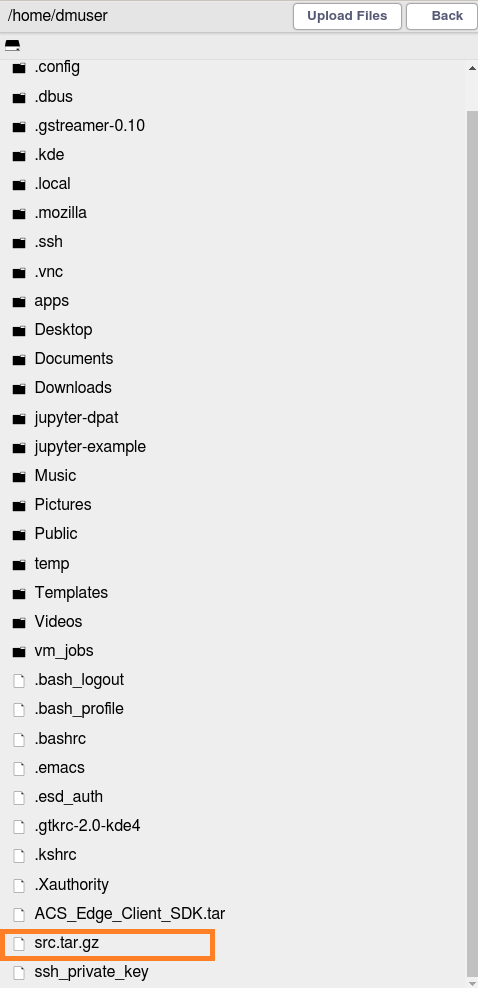
The file will be uploaded, you can confirm it in the file list
Sharing VNC and SSH with other users#
Open VNC or SSH, press Ctrl+Alt+Shift to open the management sidebar
Click the “Share” at the top of the management sidebar, then click the “VNC_share”
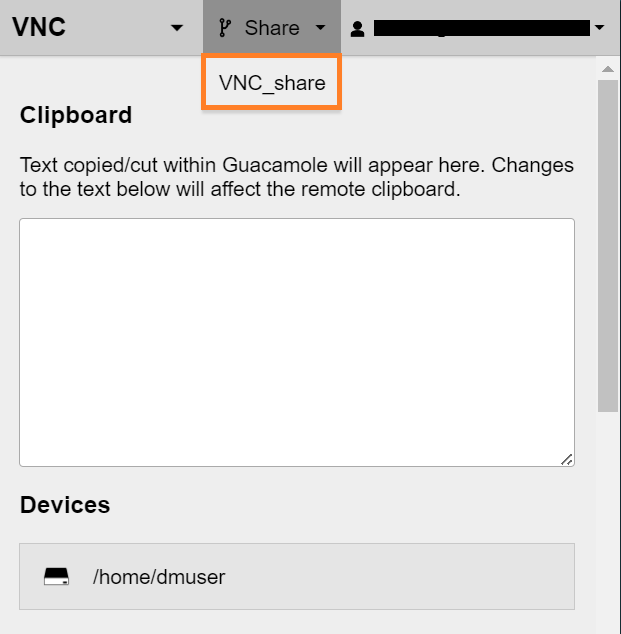
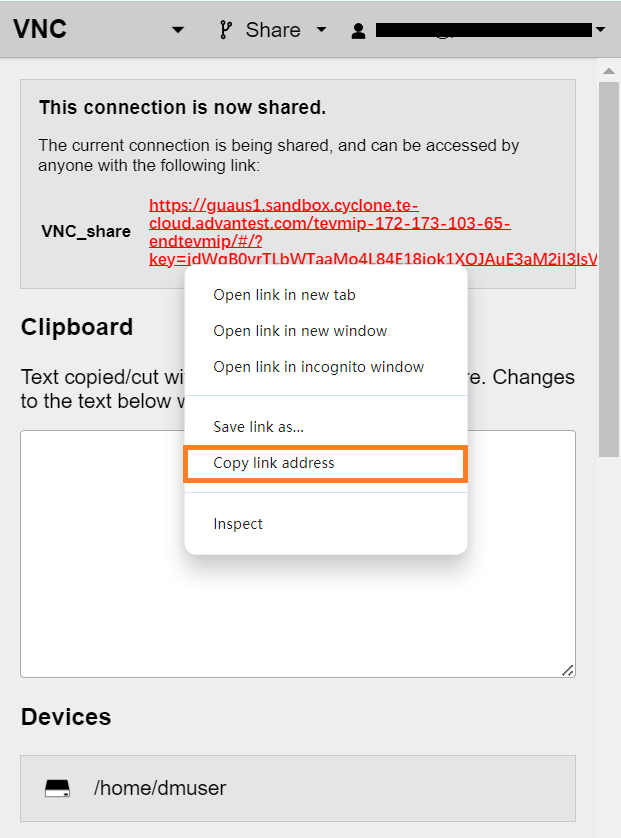
Copy the link and send it to other users to share VNC
Share VNC and SSH via email#
Open VNC or SSH, then press Ctrl+Alt+Shift to open the management sidebar
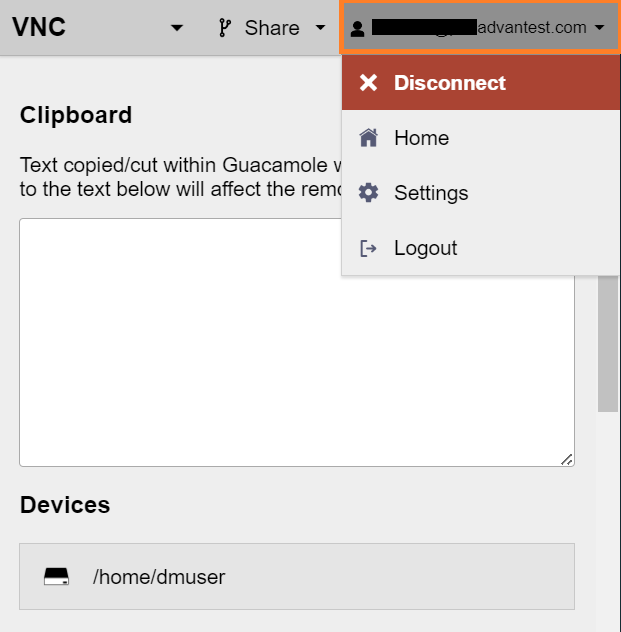
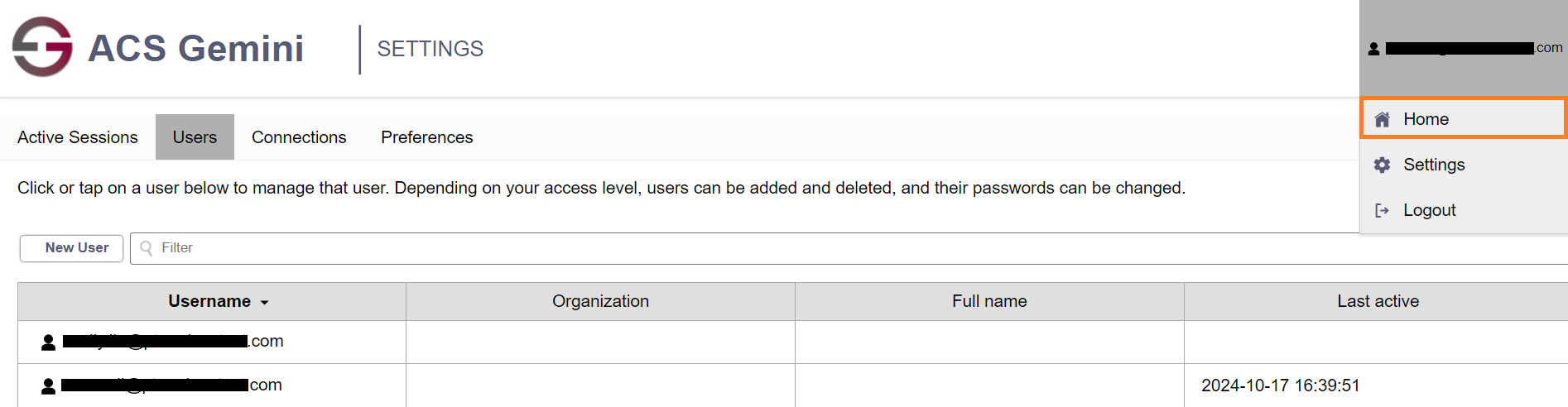
Click the “Settings” after clicking on the email address at the top right of the management sidebar
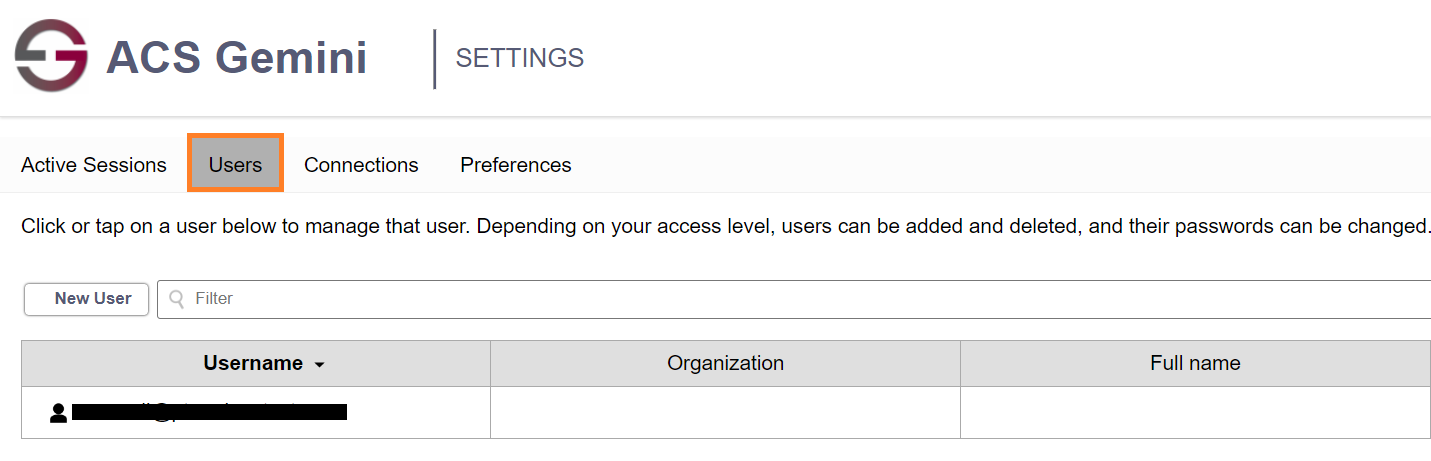
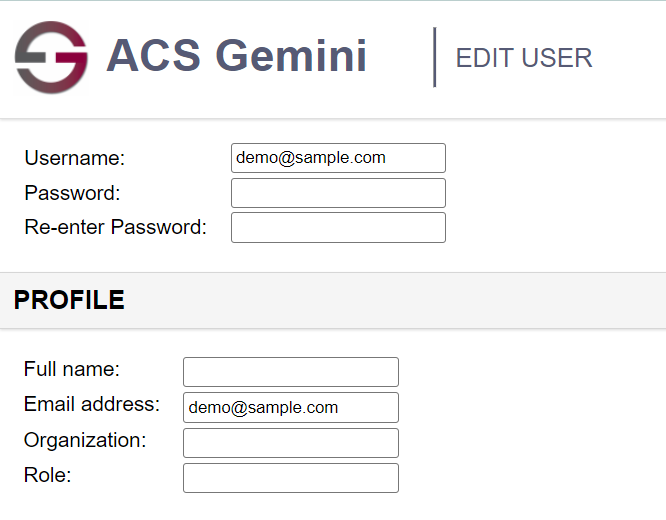
In “Users” tab panel, Click the “New User” button
Enter the user’s email in “Username” and “Email address” fields
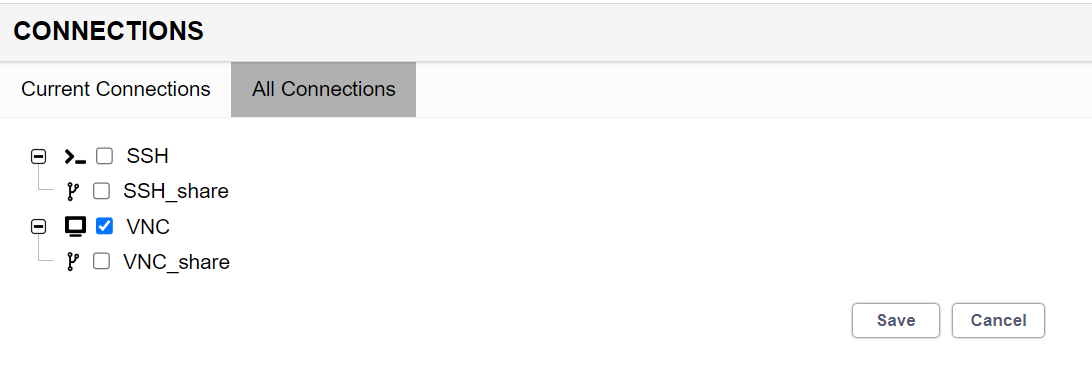
Scroll web page to the bottom, select “ALL Connections” tab panel, select the connection to be shared with, then click the “Save” button
Click the your email account at the top right of the page, then click the “Home”
Copy the URL and send it to the user which you want to share with