Use Unified Server as a Container Registry#
Purpose#
Unified Server can serve as a Docker registry, similar to Container Hub.
Compatibility#
SmarTest 8 / Nexus 3.1.0 / Edge 3.4.0-prod / UnifiedServer2.3.0-prod
Prerequisites#
3 VMs are required: Host Controller, Edge Server and Unified Server.
Create VMs#
Please refer to the “Creating and managing VM” to create VMs.
The following screenshot is for your reference.
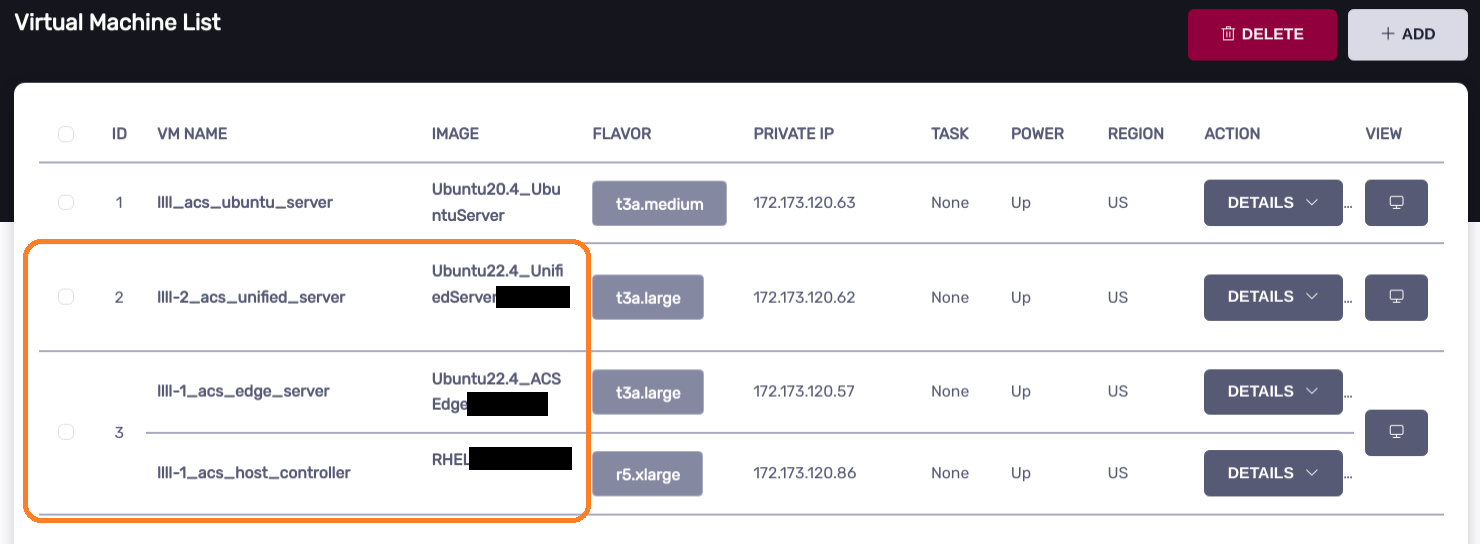
From ACS Gemini Version 1.4.0.1 onwards, Unified Server will automatically install and configure itself during startup; after the Unified Server is created for the first time, it takes approximately 30 minutes for all services to start automatically.
Configure the hosts for the Host Controller#
Edit hosts file
sudo vim /etc/hosts
Add the following lines at the end of the file.
ChangeToUnifiedServerIp unifiedserver.ui.local unifiedserver.local unifiedserver.cli.local unifiedserver.auth.local unifiedserver.acs
ChangeToEdgeServerIp advantestcell.local
Get the docker certificates from the Unified Server#
Log in to the VNC on the Host Controller.
Open a Terminal and execute the following commands:
curl http://unifiedserver.local:48484/unifiedserver.local.tar.gz -O
tar -zxf unifiedserver.local.tar.gz
sudo mkdir -p /etc/docker/certs.d/
sudo cp -rf ./unifiedserver.local /etc/docker/certs.d/
Configure the Project and Account in Harbor#
Download and run Firefox on the Host Controller.
cd ~
curl http://10.44.5.139/tools/firefox-131.0.3.tar.bz2 -O
tar -xjf ./firefox-131.0.3.tar.bz2
cd firefox
./firefox
Open Firefox and log in to Harbor (https://unifiedserver.ui.local/harbor-ui/) to configure it.
Note: Please contact Advantest support for configuration.
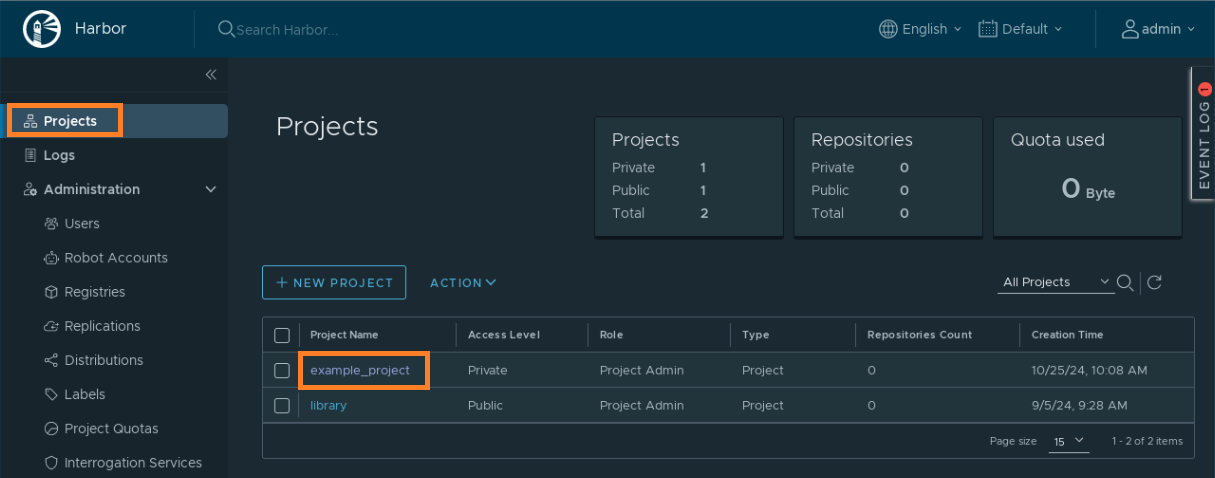
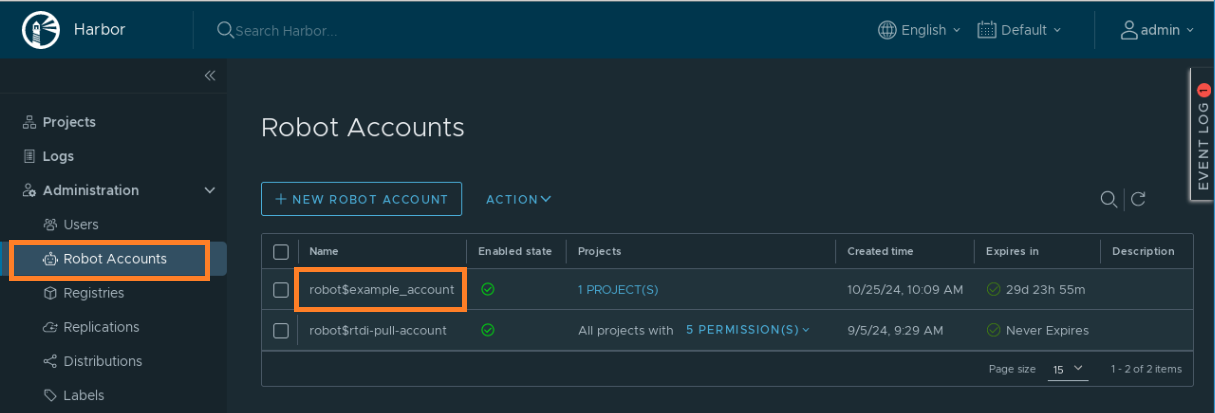
Assume the Project we created is example-project and the Robot Account is robot$example_account.
Below are the Project and Account details for Harbor:
example-project:
robot$example_account:
Test if the Docker login is successful.
sudo docker login unifiedserver.local --username 'robot$example_account' --password ChangeToYourSecret
Configure Edge Server#
Click on “Pair AUS”.
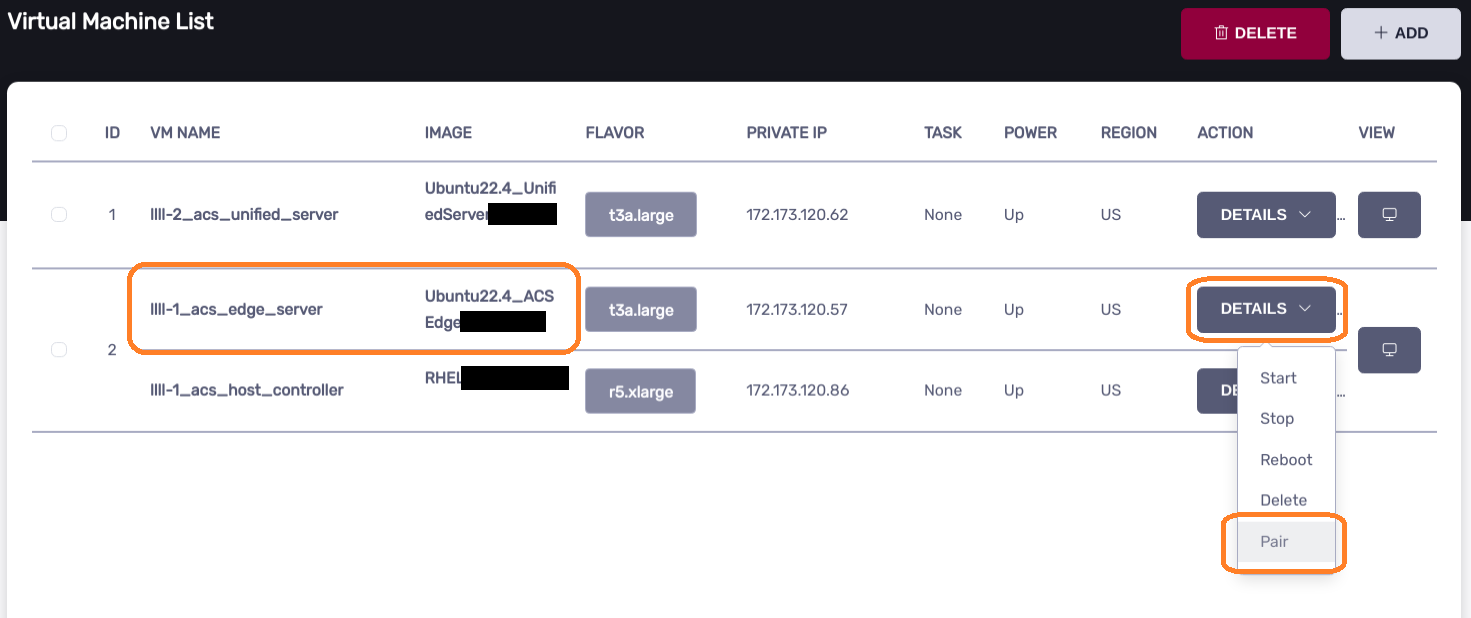
Enter the Unified Server IP and click on “Submit”.
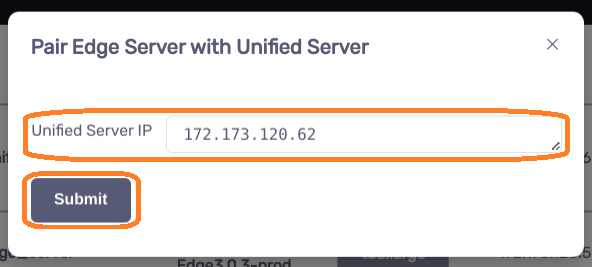
Note: You only need to pair it once. If the Unified Server is recreated, you will need to pair it again.
How to push image to Unified Server#
Build the image with the tag#
Assume the Project created is example-project and the Robot Account is robot$example_account.
sudo docker build ./ --tag=unifiedserver.local/example-project/example-repo:latest
Push the image to Unified Server#
Assume the Project we created is example-project and the Robot Account is robot$example_account.
sudo docker push unifiedserver.local/example-project/example-repo:latest
Nexus configuration#
images.json
gedit /opt/acs/nexus/conf/images.json
{
    "selector": {
        "device_name": "demoRTDI"
    },
    "edge": {
        "address": "ChangeToEdgeIp",
        "registry": {
            "address": "unifiedserver.local",
            "user": "robot$example_account",
            "password": "ChangeToDockerRegistrySecret"
        },
        "containers": [
            {
                "name": "dpat-app",
                "image": "example-project/example-repo:latest",
                "environment": {
                  "ONEAPI_DEBUG": "3",
                  "ONEAPI_CONTROL_ZMQ_IP": "ChangeToHostControllerIp"
                }
            }
        ]
    }
}
DPAT example#
Compatibility#
SmarTest 8 / Nexus 3.1.0 / Edge 3.4.0-prod / UnifiedServer2.3.0-prod
Pair AUS#
Please refer to the “Configure Edge Server” to pair AUS.
Create image#
Log in to Container Hub
sudo docker login registry.advantest.com --username ChangeToUserName --password ChangeToSecret
Log in to Unified Server
sudo docker login unifiedserver.local --username 'robot$example_account' --password ChangeToYourSecret
Transfer demo program to the Host Controller
Please refer to the “DPAT demo application on RTDI with SmarTest 8” -> “Transfer demo program to the Host Controller”.
Create the Docker image for the DPAT app
cd ~
curl http://10.44.5.139/docker/python39-basic20.tar.zip -O
unzip -o python39-basic20.tar.zip
sudo docker load -i python39-basic20.tar
cd ~/apps/application-dpat-v3.1.0/rd-app_dpat_py
sudo docker build ./ --tag=unifiedserver.local/example-project/example-repo:latest
sudo docker push unifiedserver.local/example-project/example-repo:latest
Config nexus#
Edit /opt/acs/nexus/conf/acs_nexus.ini file.
Make sure the Auto_Deploy option is false
[Auto_Deploy]
Enabled=false
Make sure the Auto_Popup option is true
[GUI]
Auto_Popup=true
Auto_Close=true
images.json
Please refer to the “Nexus configuration” -> “images.json”.
Restart nexus
sudo systemctl restart acs_nexus
Run Test Program#
Please refer to the “DPAT demo application on RTDI with SmarTest 8” -> “Run the SmarTest test program”.